Translations
To ensure flexibility and multi-language support, all static interface strings (such as buttons, labels, and fixed headings) are managed through Statamic's localization system. This allows content editors to update site copy across different languages without touching the codebase.
How to Edit Your Texts
-
Navigate to Localize In the sidebar on the left, under the Content section, click on Localize.
-
Select the Language In the top-right corner of the screen, you will see the current site language (e.g., NL or AT). Click this to switch between the different language versions of your website.
-
Find the Section Texts are organized into groups, such as Algolia Search, Forgot Password, or Auth, to help you find them quickly.
-
Edit and Save Enter your new text into the input fields. Once you are finished, click the blue Save button in the top-right corner to push the changes live.
⚠️ Important: Placeholders
You may see some texts containing codes inside curly brackets or starting with a colon, such as {query}, {name}, or :count.
- Do not change these: These are placeholders that the website automatically replaces with real information (like a user's name or a specific search term).
- Example: If the field says "No results for
{query}", the website will display it as "No results for dog food" on the front end.
Reference Screenshots
Navigation and Language Selection: 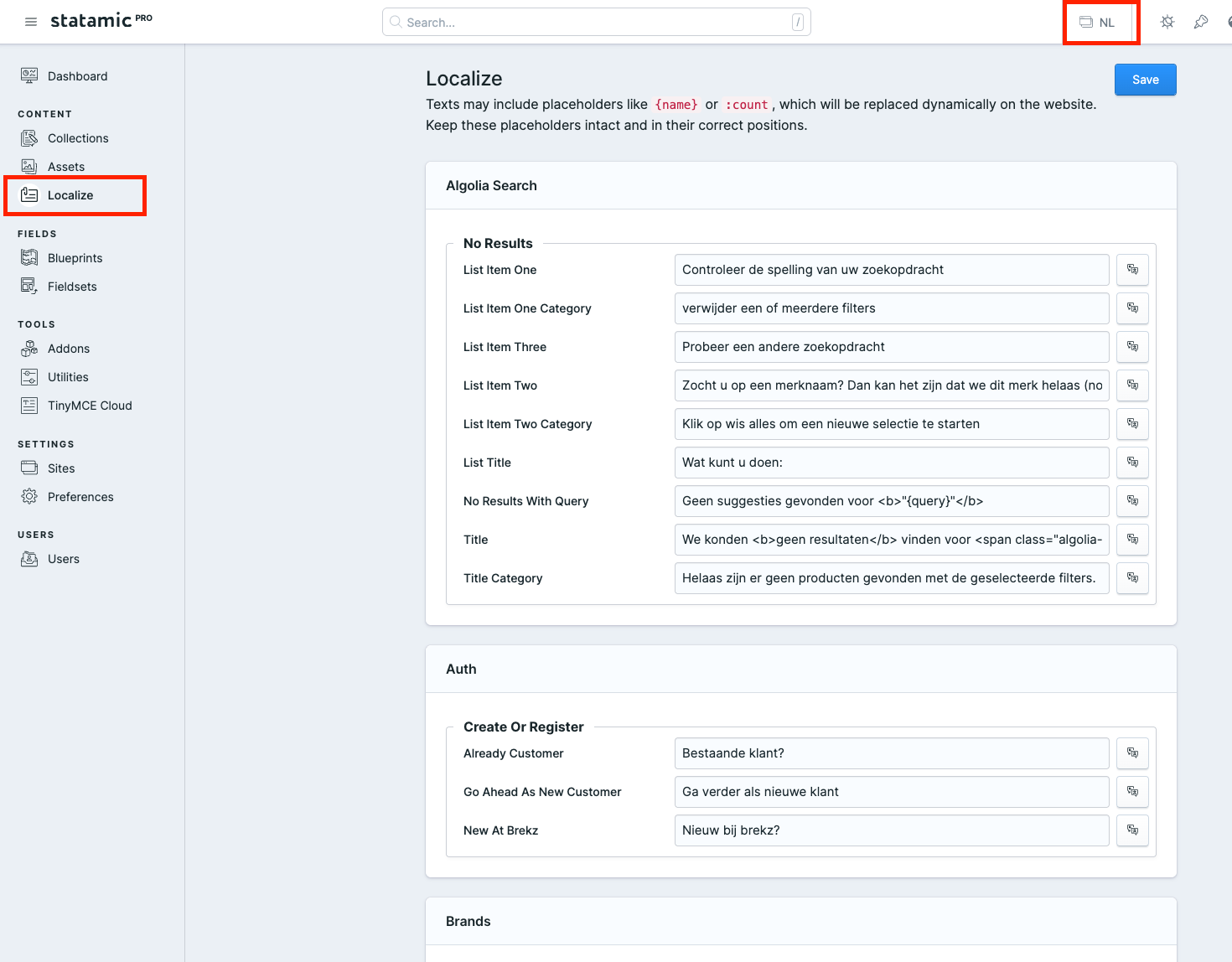
Use the sidebar to reach Localize and the top-right toggle to switch languages.
Editing Specific Fields: 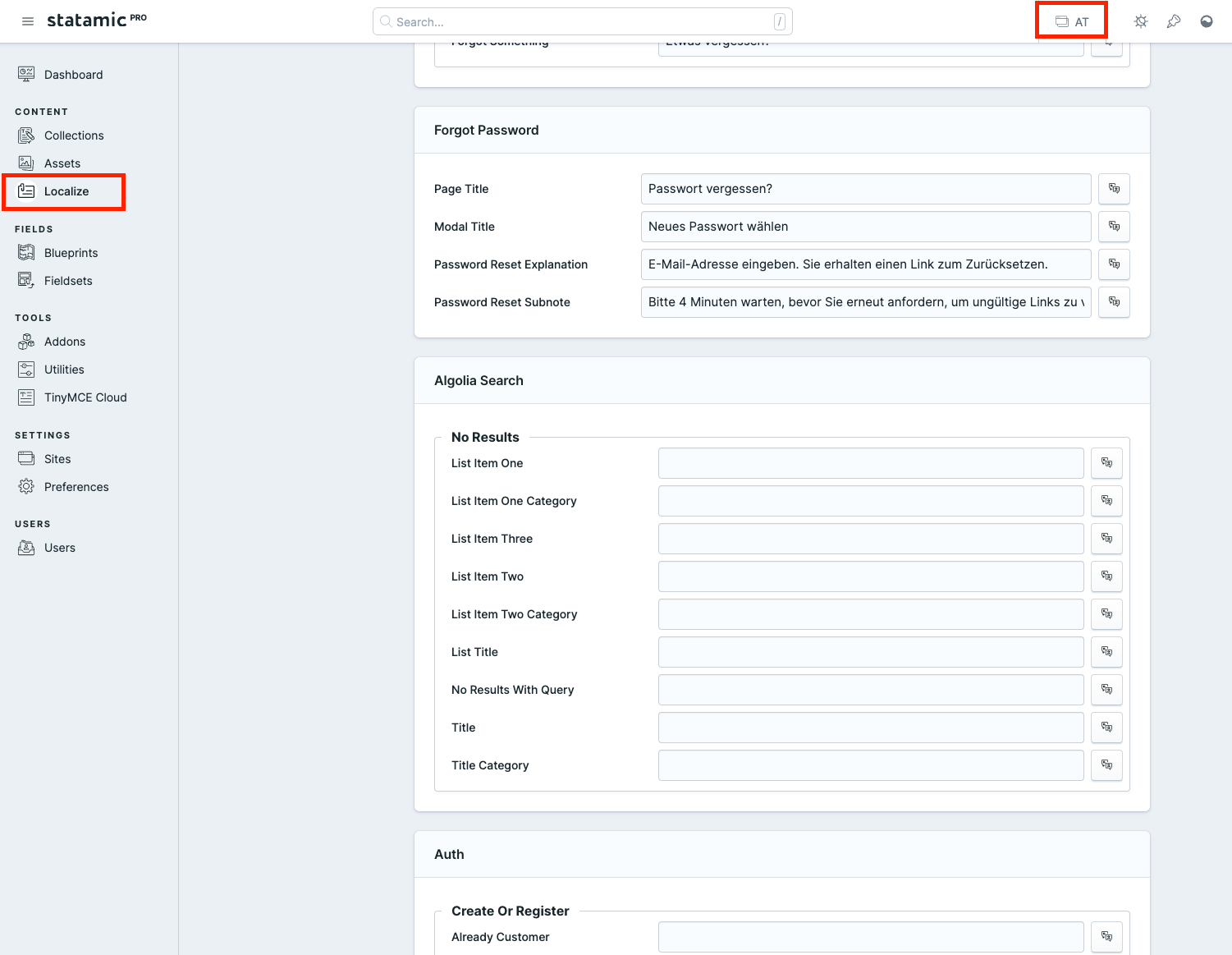
Fill in the translations for each specific category.